Spot On Performance
  • Products
    • SOP Materials
    • SOP Construction
    • SOP Carrier/Dispatch
    • SOP Driver
  • Industries
    • Frac Sand
    • Asphalt
    • Aggregates
    • Concrete
    • Oil & Gas
  • Resources
    • Training
    • Apps
    • E-Ticketing
    • Blog
  • Company
    • About Us
  • Login
  • Products
    • SOP Materials
    • SOP Construction
    • SOP Carrier/Dispatch
    • SOP Driver
  • Industries
    • Frac Sand
    • Asphalt
    • Aggregates
    • Concrete
    • Oil & Gas
  • Resources
    • Training
    • Apps
    • E-Ticketing
    • Blog
  • Company
    • About Us
  • Login
  • Products
    • SOP Materials
    • SOP Construction
    • SOP Carrier/Dispatch
    • SOP Driver
  • Industries
    • Frac Sand
    • Asphalt
    • Aggregates
    • Concrete
    • Oil & Gas
  • Resources
    • Training
    • Apps
    • E-Ticketing
    • Blog
  • Company
    • About Us
  • Login
  • Products
    • SOP Materials
    • SOP Construction
    • SOP Carrier/Dispatch
    • SOP Driver
  • Industries
    • Frac Sand
    • Asphalt
    • Aggregates
    • Concrete
    • Oil & Gas
  • Resources
    • Training
    • Apps
    • E-Ticketing
    • Blog
  • Company
    • About Us
  • Login

Getting Started

7
  • Notifications
  • Setting a Default Plant
  • Mobile Apps
  • Job Search
  • Navigating Work Shifts
  • SOP’s Dashboard
  • Accessing SOP

Administrators

11
  • Plant Setup
  • System Settings
  • Truck Management
  • Customers
  • Carrier Management
  • Driver Management
  • Project Owners
  • Inviting New Accounts
  • Inspection Firms
  • GPS Truck Tracking
  • GPS Setup

Managers

16
  • GPS Setup
  • GPS Truck Tracking
  • Load QC Reporting
  • Backhaul Scheduling
  • Job Setup and Details
  • Job Shift Settings
  • Job Access
  • Production Scheduling
  • Truck Dispatch
  • User Management
  • User Roles
  • Activity Report
  • Performance & Dwell Report
  • Time Report
  • Quality Control Report
  • System Reports

E-Ticketing

3
  • Notes and Pictures
  • Quality Control
  • E-Ticket Reporting

Plant Management

2
  • Dashboard
  • Plant Dashboard

Delivery Management

6
  • GPS Setup
  • GPS Truck Tracking
  • Location and Targets
  • Interactive Unloading
  • Truck Time Cards
  • Load Uses

Material Hauling

3
  • Material Haul Scheduling
  • Loading
  • Interactive Unloading

Drivers

9
  • Job Access
  • Time Cards
  • E-Tickets
  • Interactions
  • Check-In
  • Driver App Install
  • GPS Truck Tracking
  • GPS Setup
  • Driver Coins

Order Management

3
  • Orders
  • Creating an Order
  • Viewing & Editing Orders

E-Tickets & Reports

2
  • Ticket Search
  • Job Ticket Search
View Categories
  • Home
  • Training
  • Order Management
  • Creating an Order

Creating an Order


Overview

After navigating to the Orders page, users can begin creating new orders for their customers.


Creating an Order

From the Orders page, click the blue ‘+ New Order’ button location at the top right of the screen. This will open a pop-up that will let you begin filling in the order details.
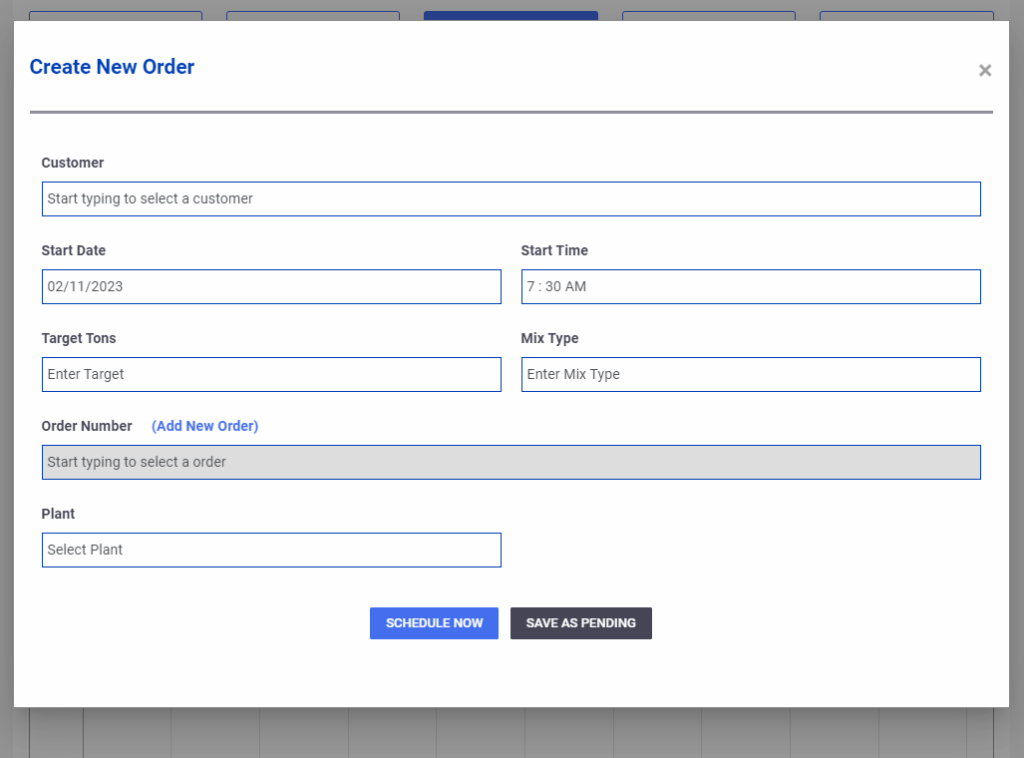
From here, you can begin entering the details for the order. It’s important to note that you must select a customer account before you select a job/order number. In addition to this, every order must have a plant assigned to it. (this can be edited later)

When finished adding any details to the order, you have the option to click one of two buttons. The blue ‘Schedule Now’ button will create the order, and confirm that it is scheduled. The grey ‘Save as Pending’ button will create the order, and mark it as ‘pending’, which means it’s still waiting on confirmation to be fully scheduled. (Pending orders continue to add to the total scheduled tons)

Pending orders can be confirmed scheduled from the Order List by clicking the blue ‘Schedule Now’ button.

Note: Construction users can submit orders against the producer, which will show up as a ‘Pending’ order. Internal customers (contractor & producer are the same company) are saved as confirmed scheduled when created from the construction side.

Updated on July 31, 2023

What are your Feelings

  • Happy
  • Normal
  • Sad

Share This Article :

  • Facebook
  • X
  • LinkedIn
  • Pinterest
OrdersViewing & Editing Orders
Table of Contents
  • Overview
  • Creating an Order

Subscribe to our Newsletter

Get notified of news and updates first.

    Porto App Landing © Copyright 2023. All Rights Reserved.