Spot On Performance
  • Products
    • SOP Materials
    • SOP Construction
    • SOP Carrier/Dispatch
    • SOP Driver
  • Industries
    • Frac Sand
    • Asphalt
    • Aggregates
    • Concrete
    • Oil & Gas
  • Resources
    • Training
    • Apps
    • E-Ticketing
    • Blog
  • Company
    • About Us
  • Login
  • Products
    • SOP Materials
    • SOP Construction
    • SOP Carrier/Dispatch
    • SOP Driver
  • Industries
    • Frac Sand
    • Asphalt
    • Aggregates
    • Concrete
    • Oil & Gas
  • Resources
    • Training
    • Apps
    • E-Ticketing
    • Blog
  • Company
    • About Us
  • Login
  • Products
    • SOP Materials
    • SOP Construction
    • SOP Carrier/Dispatch
    • SOP Driver
  • Industries
    • Frac Sand
    • Asphalt
    • Aggregates
    • Concrete
    • Oil & Gas
  • Resources
    • Training
    • Apps
    • E-Ticketing
    • Blog
  • Company
    • About Us
  • Login
  • Products
    • SOP Materials
    • SOP Construction
    • SOP Carrier/Dispatch
    • SOP Driver
  • Industries
    • Frac Sand
    • Asphalt
    • Aggregates
    • Concrete
    • Oil & Gas
  • Resources
    • Training
    • Apps
    • E-Ticketing
    • Blog
  • Company
    • About Us
  • Login

Getting Started

7
  • Notifications
  • Setting a Default Plant
  • Mobile Apps
  • Job Search
  • Navigating Work Shifts
  • SOP’s Dashboard
  • Accessing SOP

Administrators

11
  • Plant Setup
  • System Settings
  • Truck Management
  • Customers
  • Carrier Management
  • Driver Management
  • Project Owners
  • Inviting New Accounts
  • Inspection Firms
  • GPS Truck Tracking
  • GPS Setup

Managers

16
  • GPS Setup
  • GPS Truck Tracking
  • Load QC Reporting
  • Backhaul Scheduling
  • Job Setup and Details
  • Job Shift Settings
  • Job Access
  • Production Scheduling
  • Truck Dispatch
  • User Management
  • User Roles
  • Activity Report
  • Performance & Dwell Report
  • Time Report
  • Quality Control Report
  • System Reports

E-Ticketing

3
  • Notes and Pictures
  • Quality Control
  • E-Ticket Reporting

Plant Management

2
  • Dashboard
  • Plant Dashboard

Delivery Management

6
  • GPS Setup
  • GPS Truck Tracking
  • Location and Targets
  • Interactive Unloading
  • Truck Time Cards
  • Load Uses

Material Hauling

3
  • Material Haul Scheduling
  • Loading
  • Interactive Unloading

Drivers

9
  • Job Access
  • Time Cards
  • E-Tickets
  • Interactions
  • Check-In
  • Driver App Install
  • GPS Truck Tracking
  • GPS Setup
  • Driver Coins

Order Management

3
  • Orders
  • Creating an Order
  • Viewing & Editing Orders

E-Tickets & Reports

2
  • Ticket Search
  • Job Ticket Search
View Categories
  • Home
  • Training
  • Drivers
  • Job Access

Job Access


Overview

SOP allows drivers to link themselves to trucks, granting access to E-Tickets, time cards, and more.


Truck setup

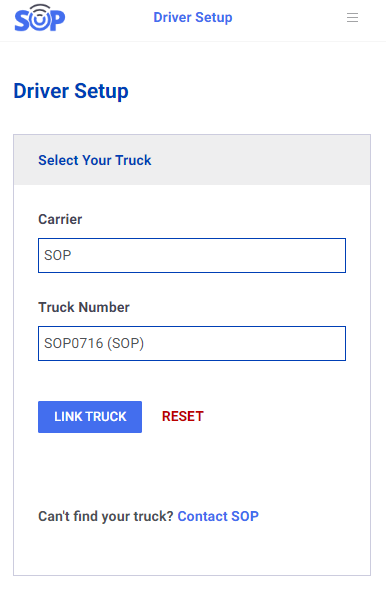
Upon the initial login, drivers are presented with the Truck Setup screen. Here, they can choose their carrier from the provided list and enter their truck number. To begin, select the assigned carrier for your truck and input your truck number. After selecting the appropriate match from the list, click ‘Link Truck’ to complete the process. For detailed instructions, please refer to our other guides under the Drivers category.

If you do not see the Driver Setup screen, it is likely because your account is already linked to an existing truck. To resolve this, click the dropdown menu in the top-right corner of your screen and select ‘Unlink Truck’ to initiate the new linking process.

If you are unable to find your truck or carrier in the list, please contact SOP using the provided link within the app.
Updated on June 7, 2023

What are your Feelings

  • Happy
  • Normal
  • Sad

Share This Article :

  • Facebook
  • X
  • LinkedIn
  • Pinterest
Driver CoinsTime Cards
Table of Contents
  • Overview
  • Truck setup

Subscribe to our Newsletter

Get notified of news and updates first.

    Porto App Landing © Copyright 2023. All Rights Reserved.